WorkspacesAvailable
Workspaces
A workspace is the unit of isolation for a developer or agent session. Start it from the directory that contains agent-up.json.
It is identified by project path. It may include Git metadata, a browser profile, Docker infrastructure, running processes, an allocated port range, diagnostics, and event history.
Non-Git paths still work and display as not on a git branch. Agent-Up can also clone a repository for you and register the result.
Add
agent-up.jsonat the repository rootStart the workspace
Switch among isolated sessions
Command
agent-up start
Where it differs
CLI
agent-up.json.Desktop
+ control clones a repository at a branch and registers it. The plan card at the bottom of that list names unavailable operations when the Server withholds them, and the + and remove controls follow workspace.create and workspace.delete.Mobile
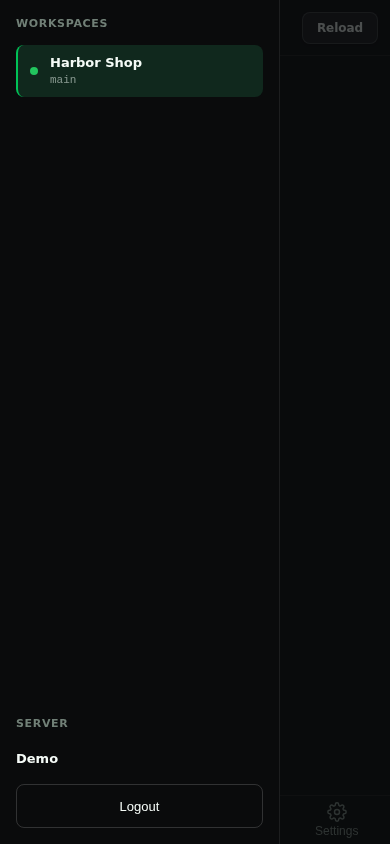
+ control lives on the sidebar workspace list. There is no Workspaces tab. Remove follows workspace.delete the same way.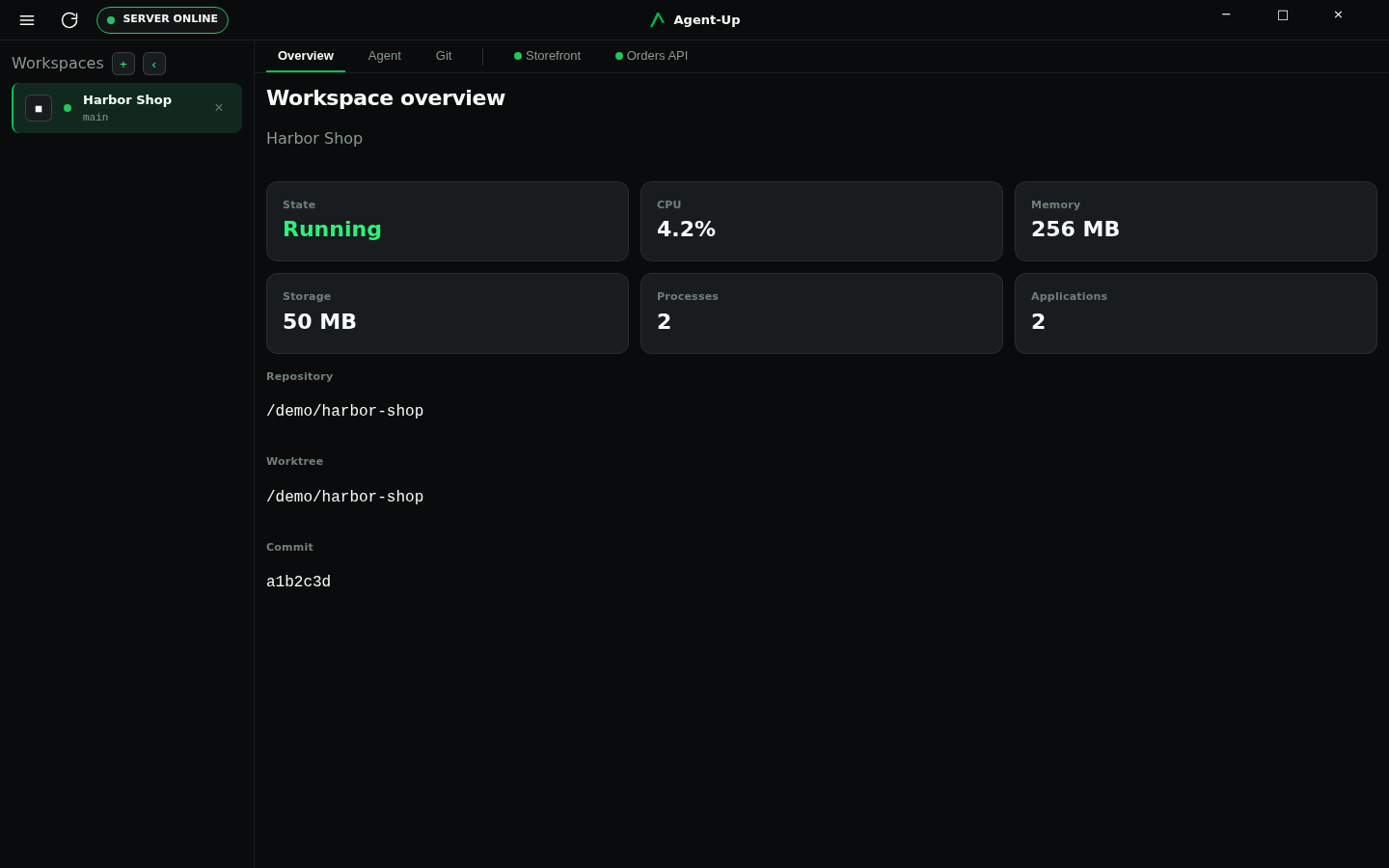
Worktree model
The workspace identity is the project path. When that path is a Git repository or worktree, Agent-Up records the repository root, branch, and commit. When no Git repository exists, the workspace still works and displays not on a git branch.
Git worktrees are the recommended model for AI agents working in the same repository because they preserve separate branches, running applications, browser sessions, and validation state.
Where it differs
Desktop
Mobile
Managed source clones
Agent-Up can manage the clone itself instead of only registering a checkout you created.
Ask for a repository and branch
Both the Desktop workspace list and the Mobile sidebar have a
+button, and it stays available after the first workspace exists. Tick Start a review workspace at this revision to clone a disposable copy at a branch, tag, or commit without touching your own checkout. Each row can be removed.Clone into the source clones directory
The result is registered so it appears in the workspace list on every connected client. Review workspaces are labelled separately from your own workspaces. Refresh keeps the same workspace and can move it onto a different branch, tag, or commit.
Keep isolation
Clones created this way behave like any other workspace: they get their own port range, processes, browser profile, and diagnostics.
The repository must be an http, https, ssh, or git remote URL, or the user@host:path form. The branch or revision must already exist on the remote. Agent-Up refuses a clone when a directory with the repository's name already exists under the source clones directory. A review workspace uses its own directory, so it never overwrites an existing checkout.
The source clones directory defaults to a sources folder inside the Server data directory. Set AGENTUP_SOURCE_CLONES_ROOT in the Server environment to keep managed clones somewhere else, such as a larger disk.
Removing an ordinary managed clone unregisters it from Agent-Up and leaves the clone on disk. Removing a review workspace also deletes its clone directory, allocated ports, and browser profile.
Runtime isolation
Workspace isolation prevents collisions between concurrent development sessions.
Each workspace owns
Ports
Processes
Docker
Browser
Diagnostics
Switching workspaces
Switching workspaces should restore the relevant running applications and browser state without forcing developers or AI agents to recreate tabs, reauthenticate, or restart unrelated services.
Connect and login
Open Demo to try the product
Desktop and Mobile always list a built-in Demo server. Desktop shows the connect picker on every launch before talking to a local Server. It is sample state inside the client, not a running Agent-Up Server.
Connect with the Server URL
Saved servers stay on the client; only one is active. Sign-in follows that Server's
authentication.mode.Use HTTPS off loopback
Remote servers must use HTTPS. Loopback HTTP remains for local development.
Expect a clean client switch
Switching servers drops that client's local workspace state.
Where it differs
Mobile
CLI workspace commands
start searches the current directory and its parents for agent-up.json, then pushes the workspace definition to the Server: identity, legacy applications / desktopApplications / services, and every other root array as a runtime section. The Server binds those arrays to enabled runtime-kind modules. The directory containing agent-up.json is the workspace root. Running start again from the same workspace updates the existing workspace in place.
Start outcomes
Starting
Running
Degraded
Failed
agent-up start prints each failed application and its reason. It exits non-zero only when nothing started.
agent-up start --server http://localhost:5001
Other commands
stop
list
status
clear
capabilities
auth authenticates the CLI with a Server that requires the admin password. Tokens are stored locally per server URL. auth commands always require an explicit --server argument. They do not fall back to repository .env values or AGENTUP_SERVER_URL.
agent-up auth login --server http://localhost:5001 --password "$AGENTUP_ADMIN_PASSWORD"
Omit --password to enter the admin password interactively. Use auth status to check whether authentication is required, and auth logout to remove the stored token.
When invoking with dotnet run, pass CLI arguments after --. Use http://localhost:5001 when running Server from the repository launch profile.
dotnet run --project AgentUp.CLI -- start --server http://localhost:5001